ZS Bundles Guide
Learn how to set up bundle offers, create upsells, and configure volume discounts to increase sales on your Shopify store — with no coding required.
📖 Introduction
ZS Bundles helps you create powerful offers that encourage shoppers to buy more and increase your average order value. Create quantity breaks, BOGO deals, multipacks, free gifts, subscriptions, and upsell offers — all from one place.
Simply create your offer in the app, add the bundle widget to your product page, and the discount will be applied automatically at checkout when customers purchase the bundle.
To get started, understand the three main parts:
- ⚙️ Admin App — Create, customize, and manage all your bundle offers from the app dashboard.
- 🖥️ Storefront Widget — The bundle offer display that shoppers see on your product page and interact with while shopping.
- 🏷️ Automatic Discount — The discount is applied automatically at checkout when a customer qualifies for a bundle offer.
🚀 Installation
📥 Install the App
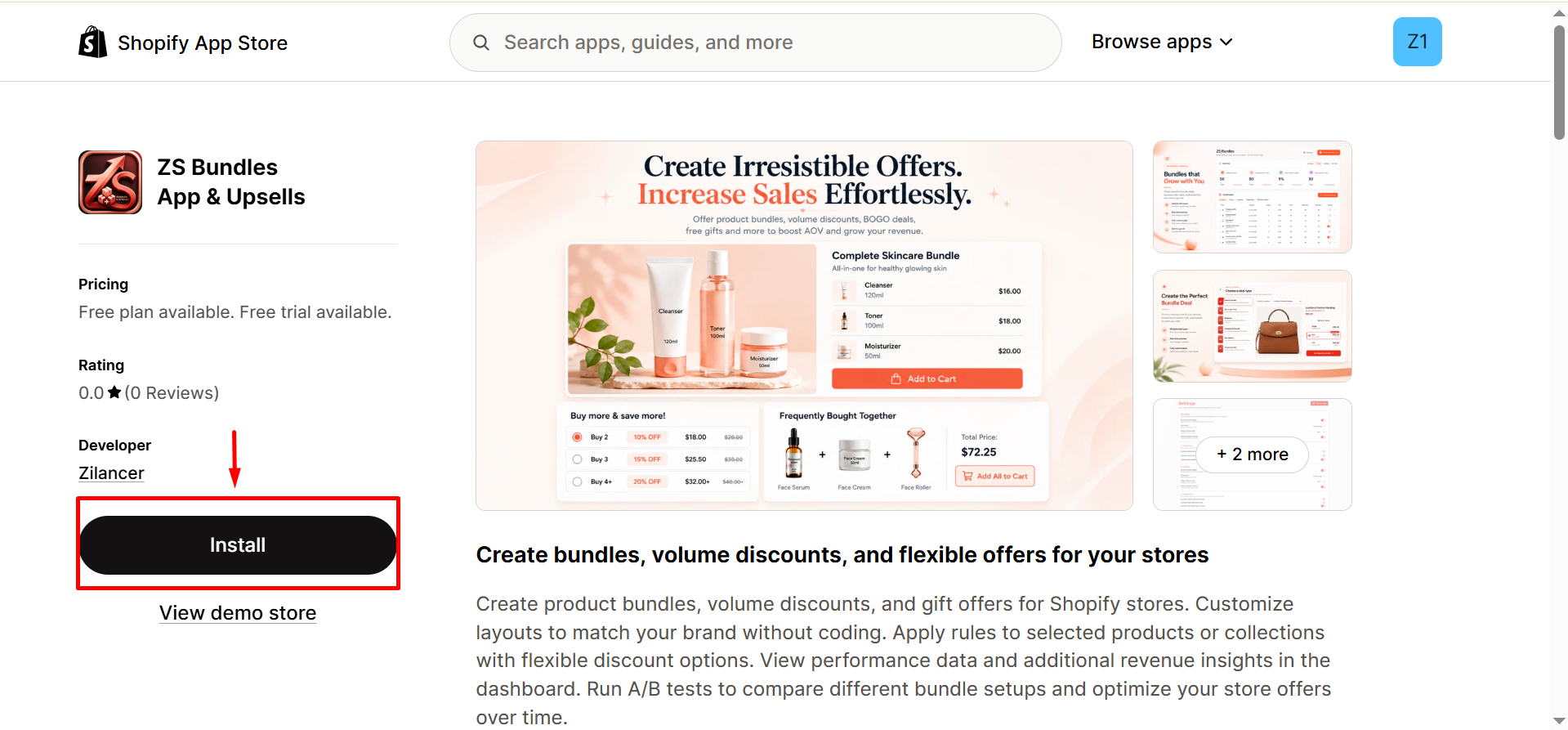
In the Shopify App Store, click Install and approve the installation for your store.
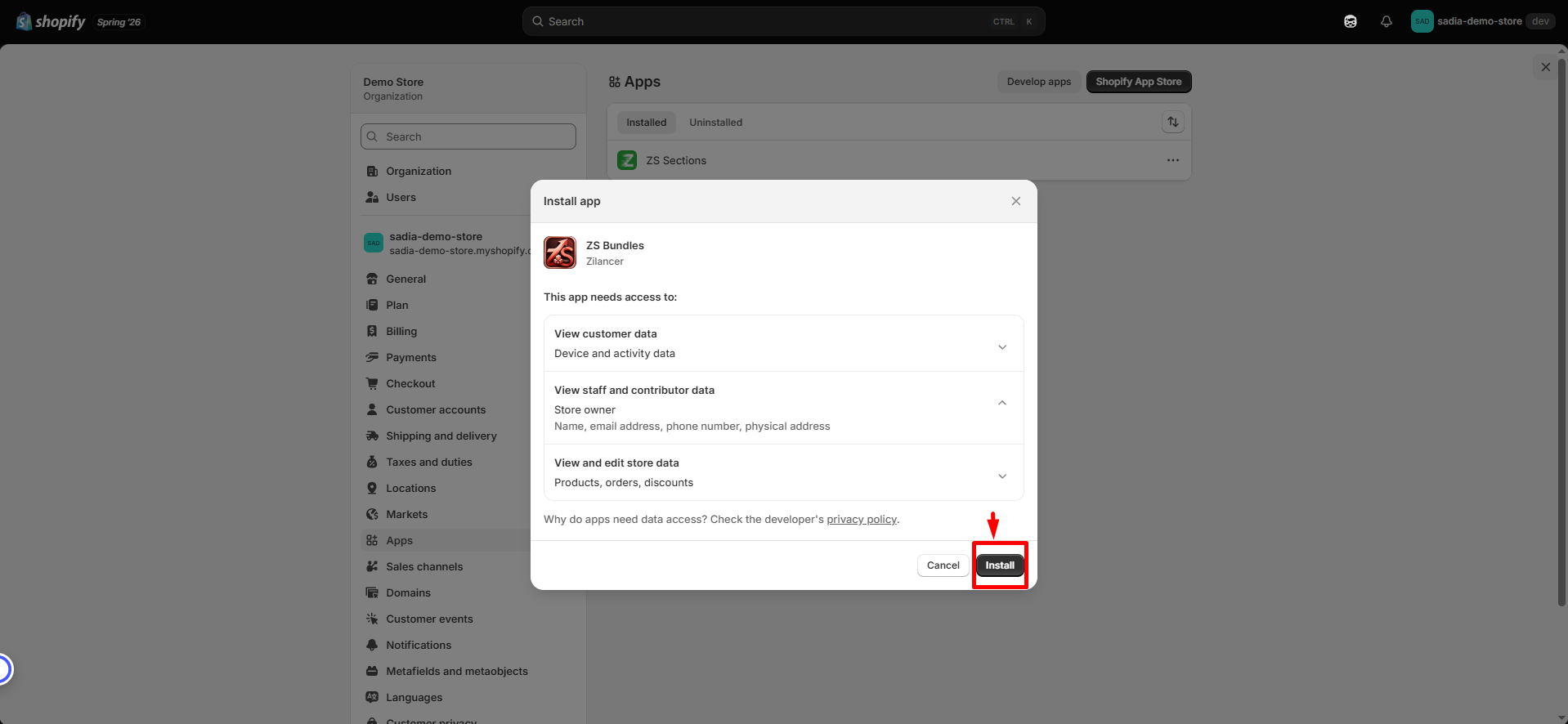
✅ Approve Permissions
ZS Bundles requires access to products and discounts to read your catalog and apply bundle pricing. These permissions are requested during the installation process.
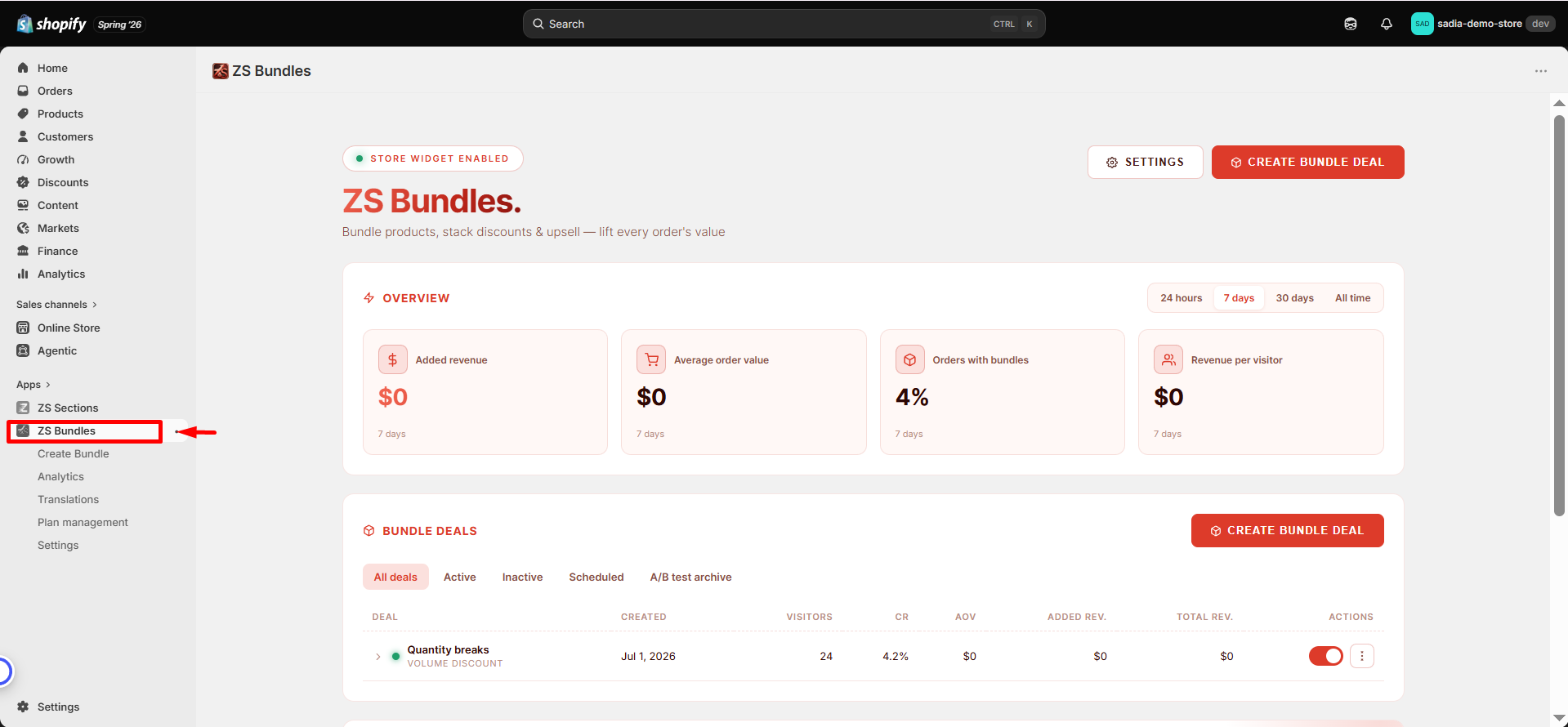
📂 Open the App
After installation, find ZS Bundles under Apps in your Shopify admin sidebar and open the app.
🎁 Your First Bundle
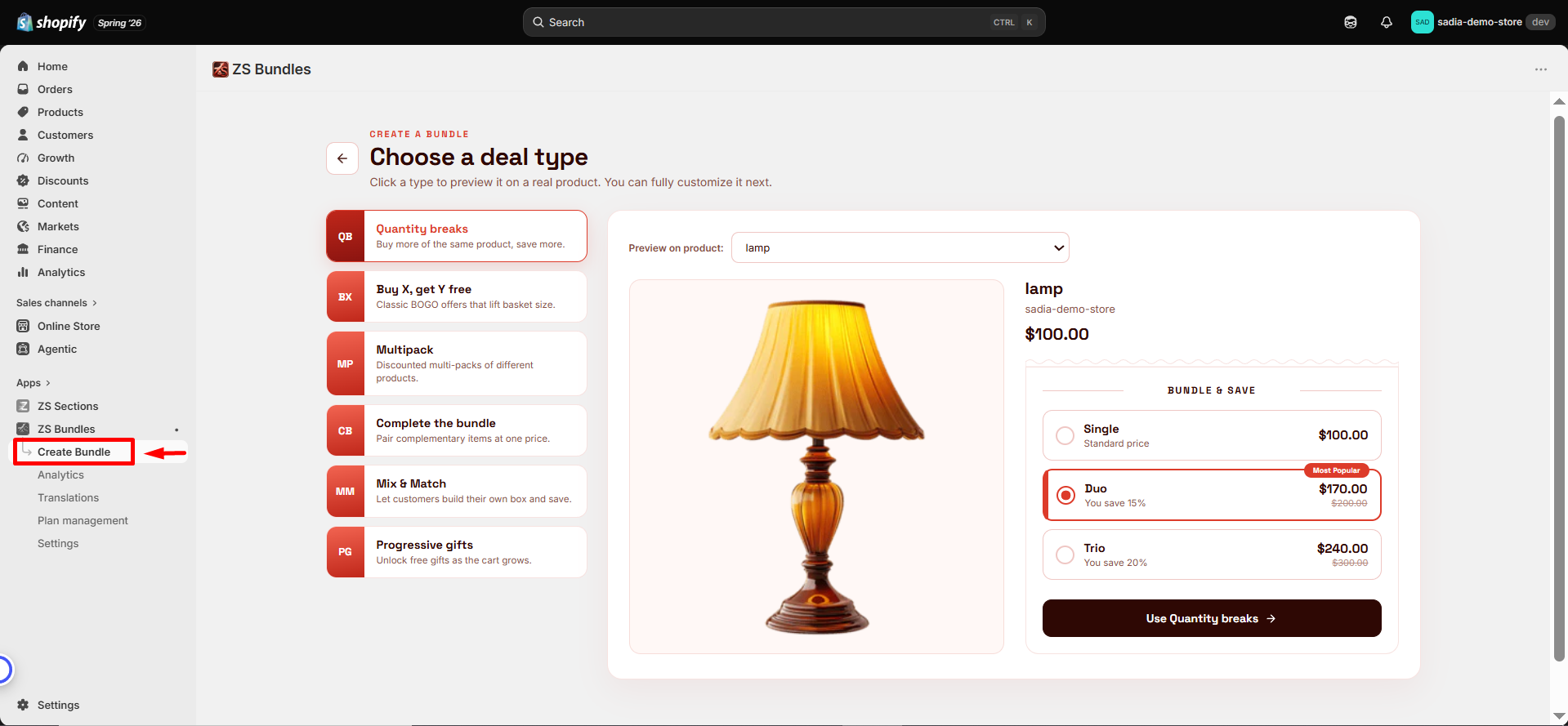
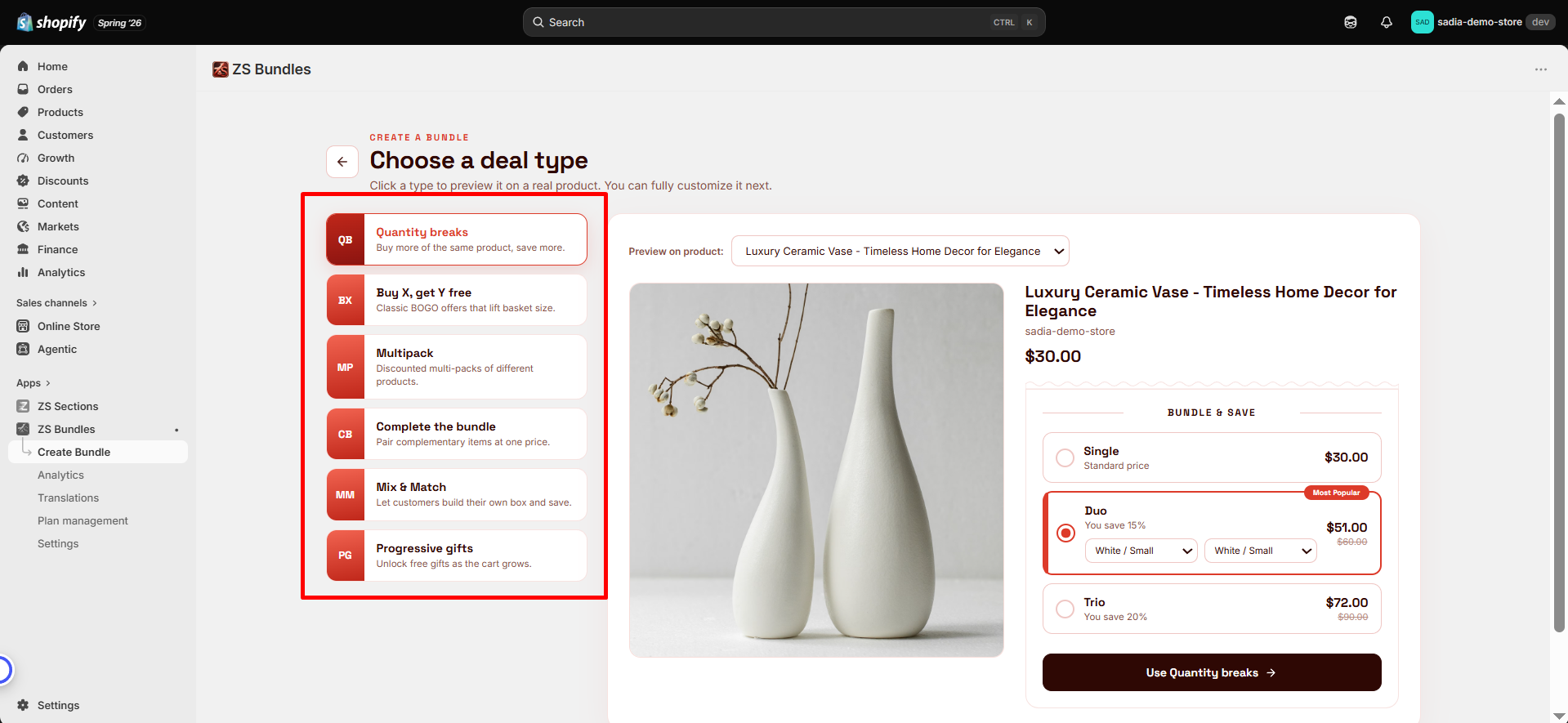
Create your first bundle in just a few steps. From the app dashboard, click Create a Bundle to get started. You'll see a collection of Deal Tickets—pre-designed templates for different types of bundle offers.
🎟️ Choose a Deal Ticket
Select the deal type that best matches your promotion, such as Quantity Breaks, BOGO, or Free Gift. You can also choose a color theme from the top-right corner before clicking Use This Ticket.
📦 Select Products
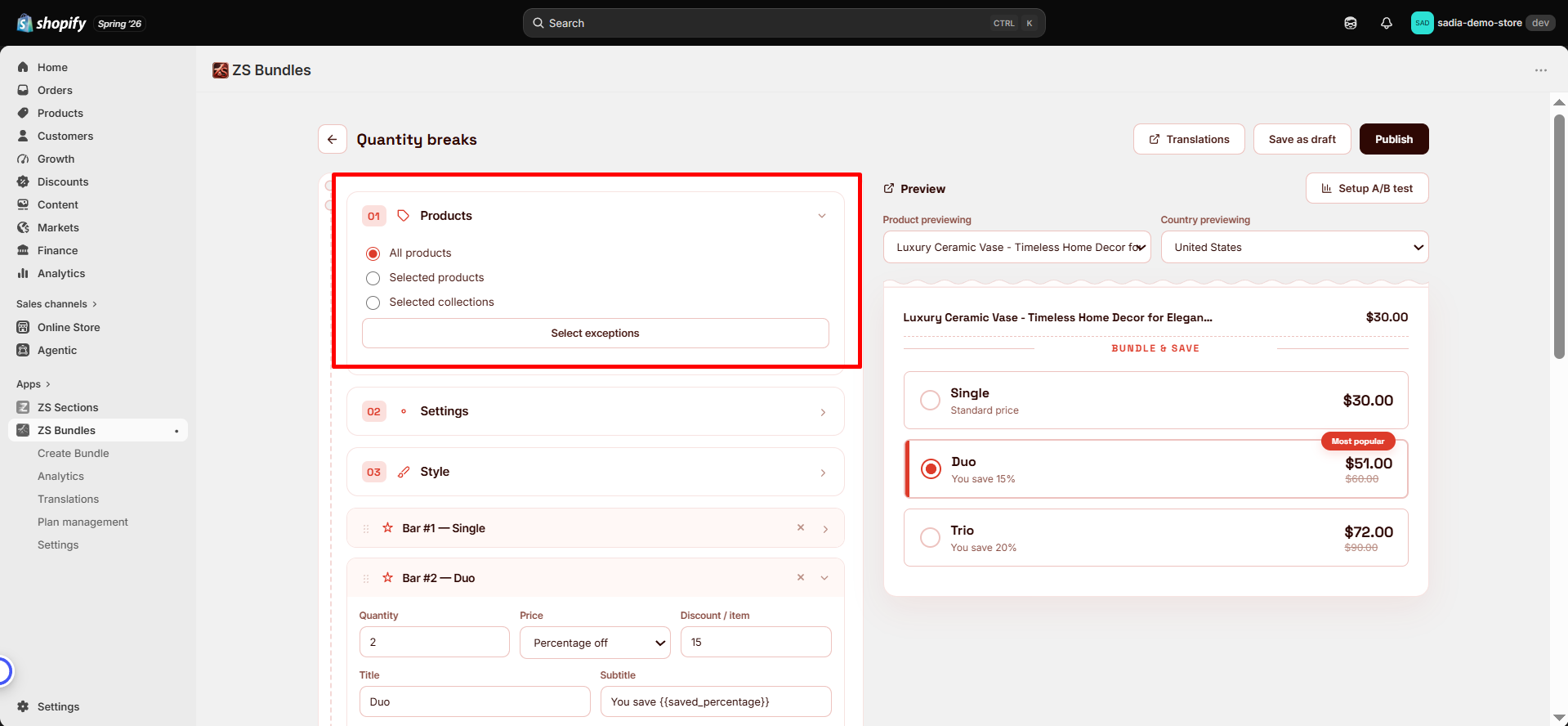
In the Products section, choose where the bundle should apply. You can apply it to all products, specific products, or selected collections.
⚙️ Customize the Offer
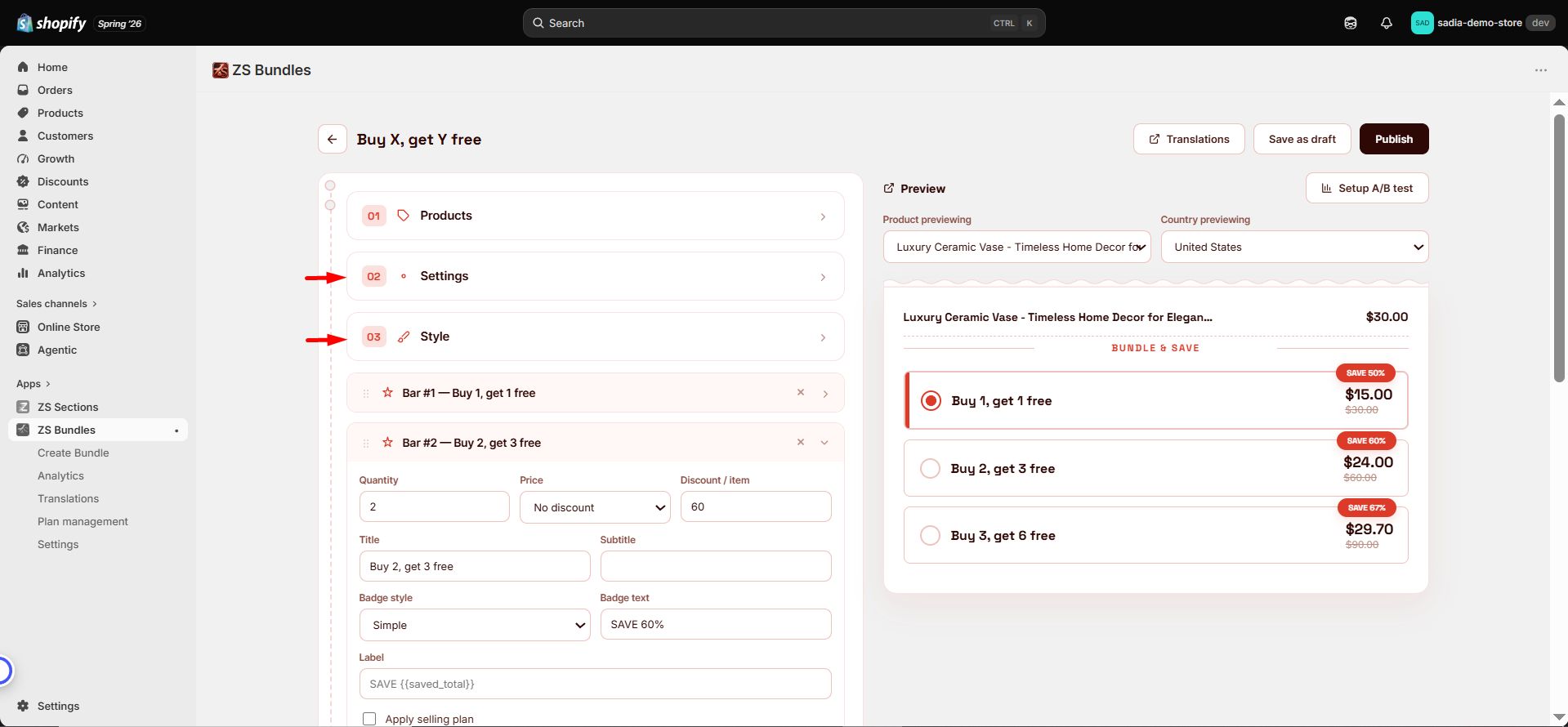
Edit each offer tier by setting the quantity, discount, title, and badge. Use the live preview to see exactly how the bundle will appear to shoppers.
🚀 Publish Your Bundle
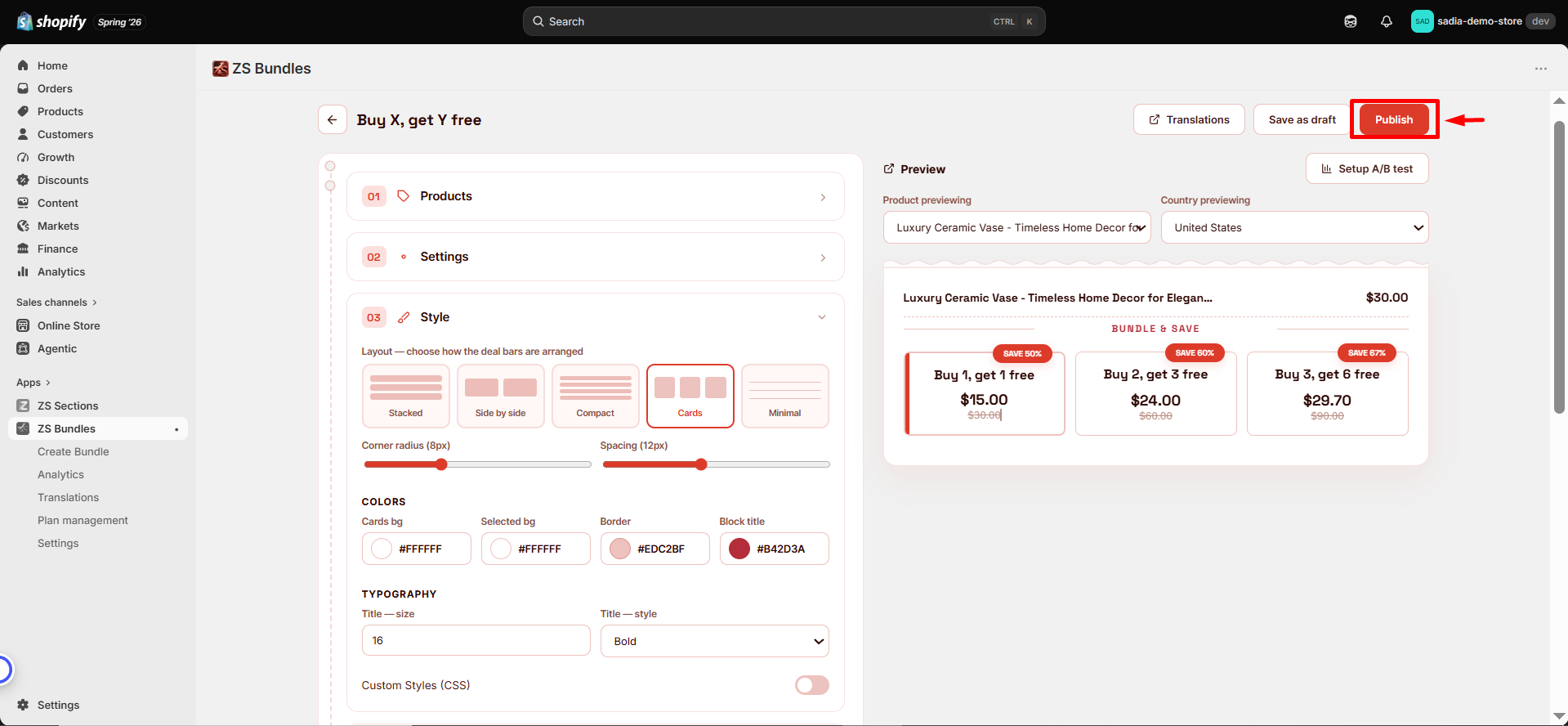
When you're happy with your setup, click Publish. Your bundle will go live, and the discount will be applied automatically at checkout whenever customers qualify for the offer.
🧩 Add the Bundle Widget to Your Store
Publishing a bundle makes it available, but you also need to add the bundle widget to your product page so shoppers can see and use your offers.
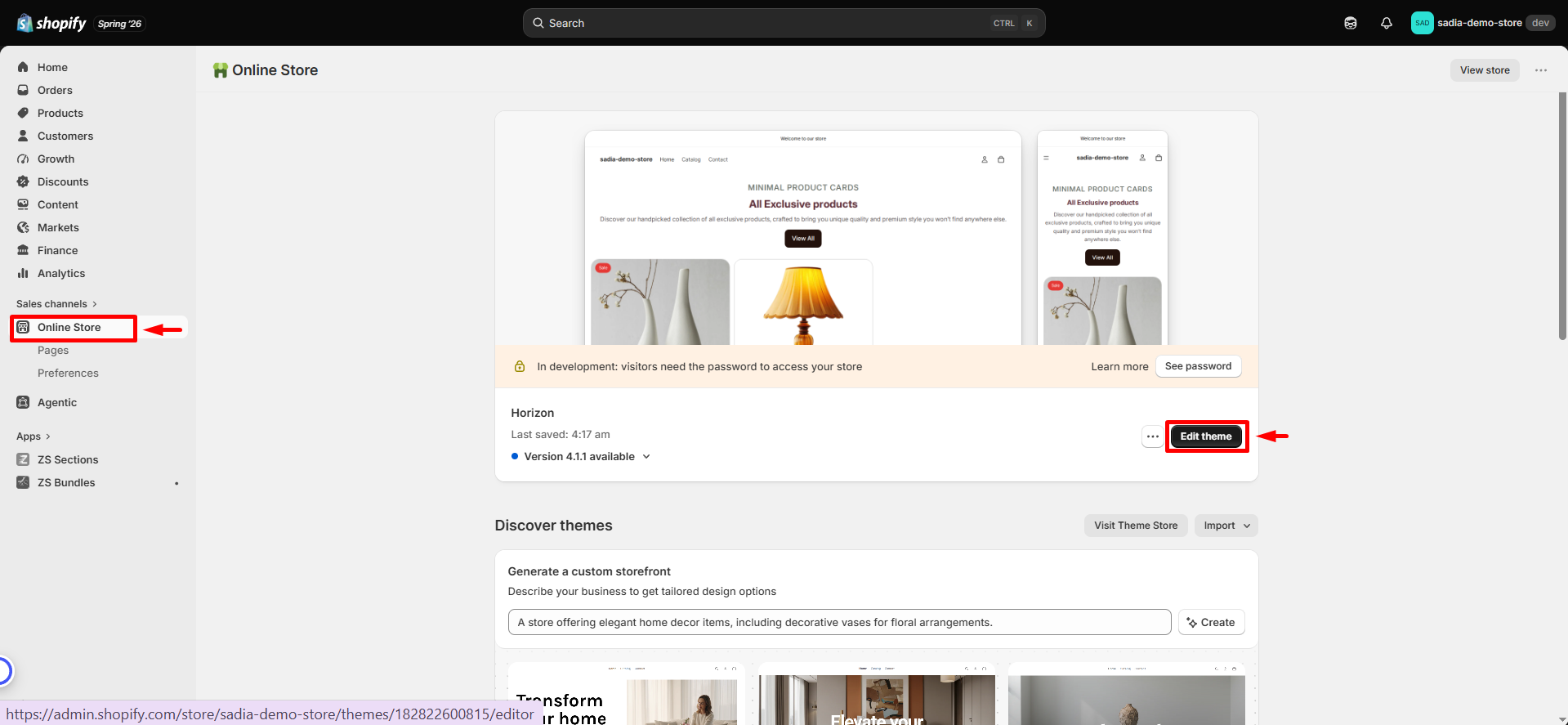
- 🛍️ Open the Theme Editor - In your Shopify admin, go to Online Store → Themes → Customize.
- 📄 Open a Product Template - From the template selector, open a Product page template.
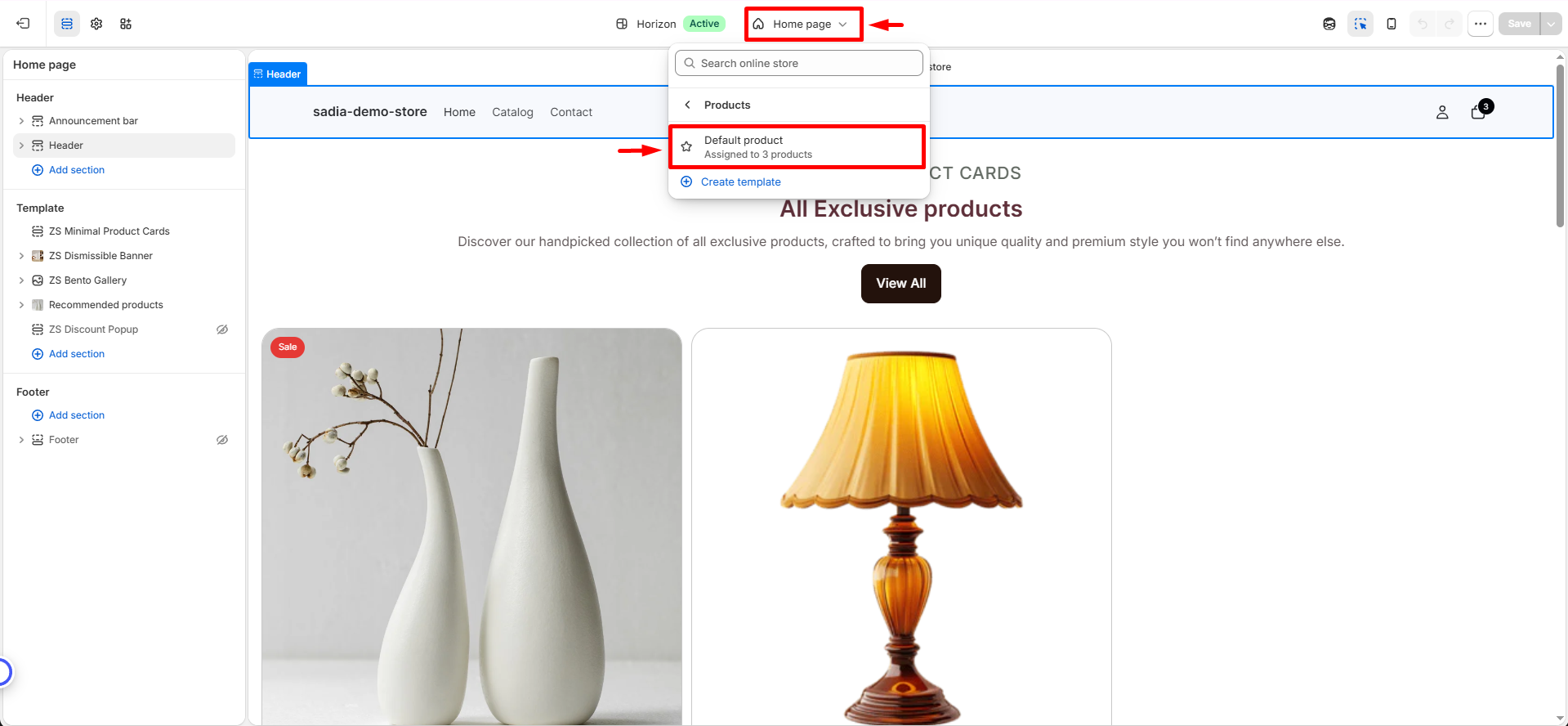
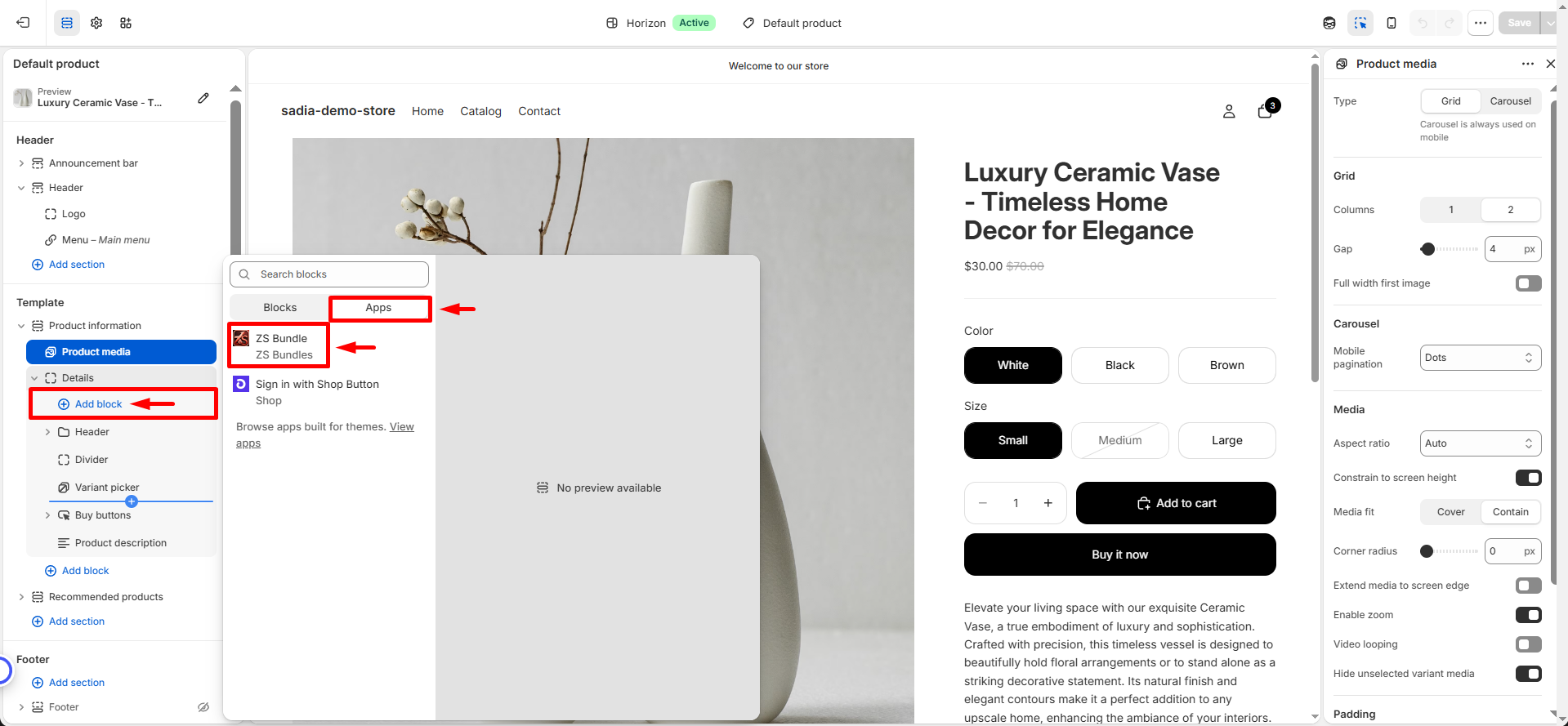
- ➕ Add the Bundle Widget -In the product section, click Add Block and select ZS Bundle.
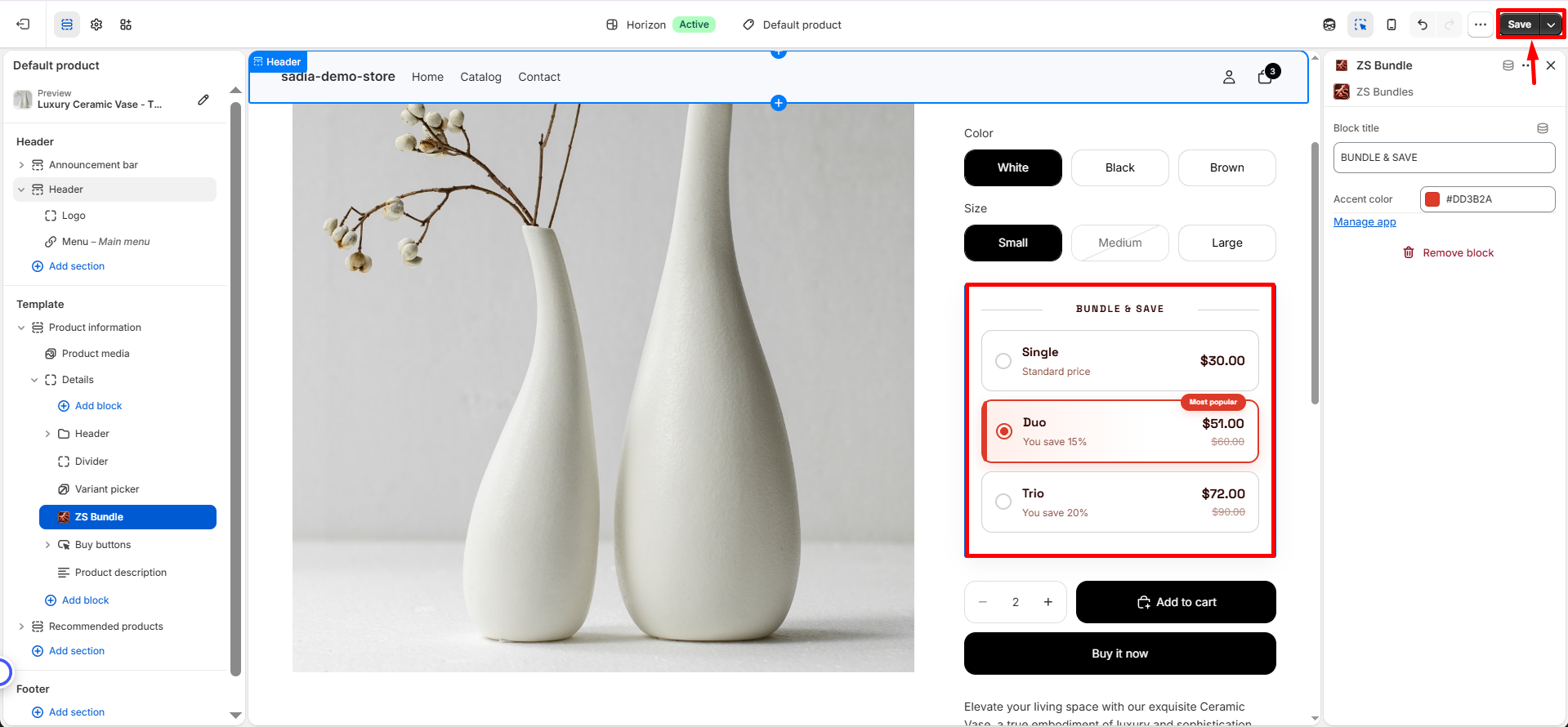
- 📍 Position and Save - Place the widget where you want it to appear (typically below the Add to Cart button), then click Save.
🏷️ Bundle Types
ZS Bundles offers multiple bundle types to help you create promotions for different sales goals. Each bundle starts with a ready-to-use template that you can fully customize.
| Code | Bundle Type | Best for |
|---|---|---|
| QB | Quantity Breaks | Encourage shoppers to buy more of the same product with volume discounts. |
| BX | Buy X, Get Y | Create BOGO offers, free item promotions, or discounted add-on products. |
| MP | Multipack | Sell multiple products together as a discounted bundle. |
| CB | Complete the Bundle | Recommend complementary products to increase order value. |
| SUB | Subscription | Offer recurring purchases with subscription discounts. |
| PG | Progressive Gifts | Reward shoppers with free gifts as their cart value or quantity increases. |
📦 Products & Targeting
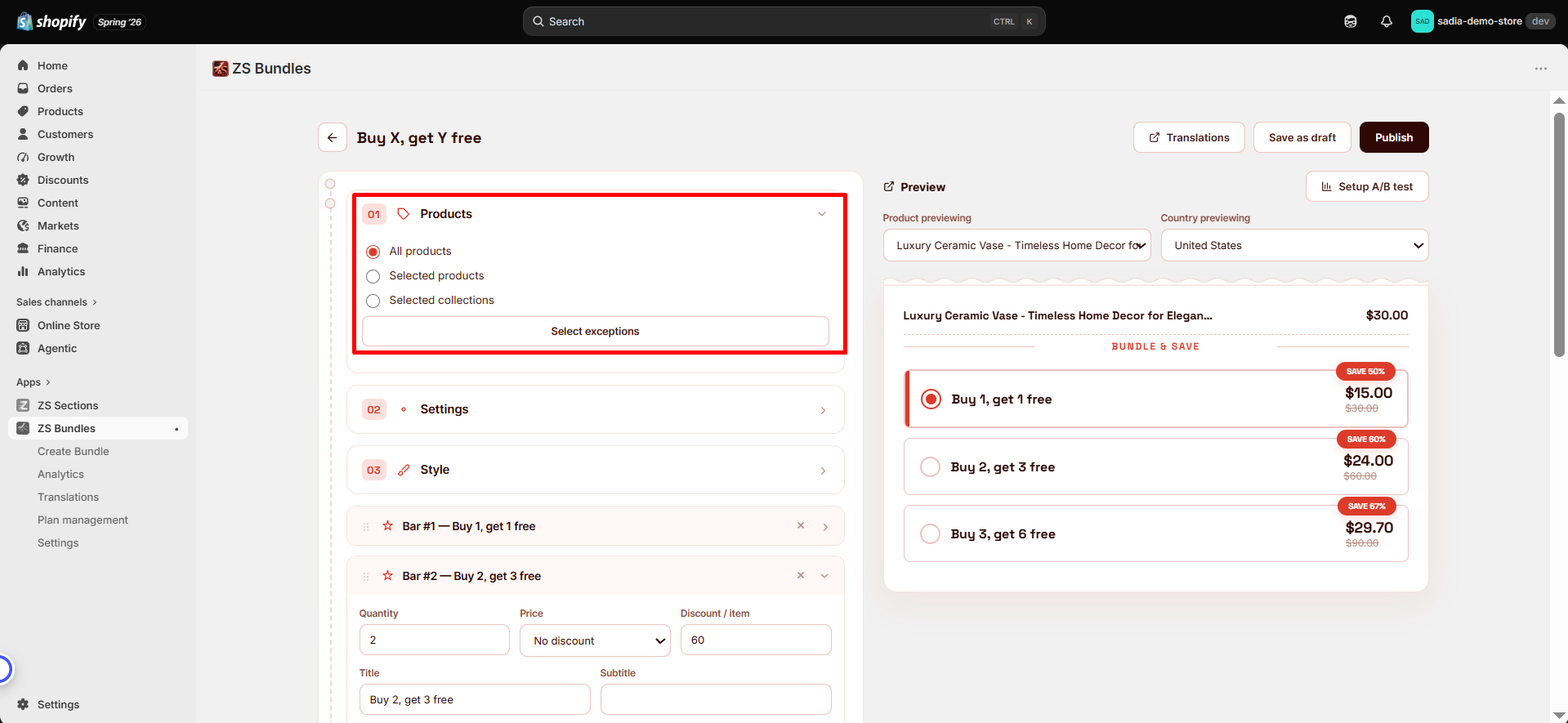
Choose where your bundle offer will appear from the Products section.
- All Products — Display the bundle on every product page. You can exclude specific products using exceptions.
- Selected Products — Apply the bundle only to the products you choose.
- Selected Collections — Display the bundle on all products within selected collections.
💰 Discounts & Pricing
Customize the discount for each bundle tier to match your promotion. You can choose from the following discount types:
- No Discount — Display the regular product price. Ideal for the base or single-item option.
- Percentage Off — Apply a percentage discount, such as 15% off.
- Fixed Amount Off — Deduct a fixed amount from the product price.
- Specific Price — Set an exact price for the entire bundle tier.
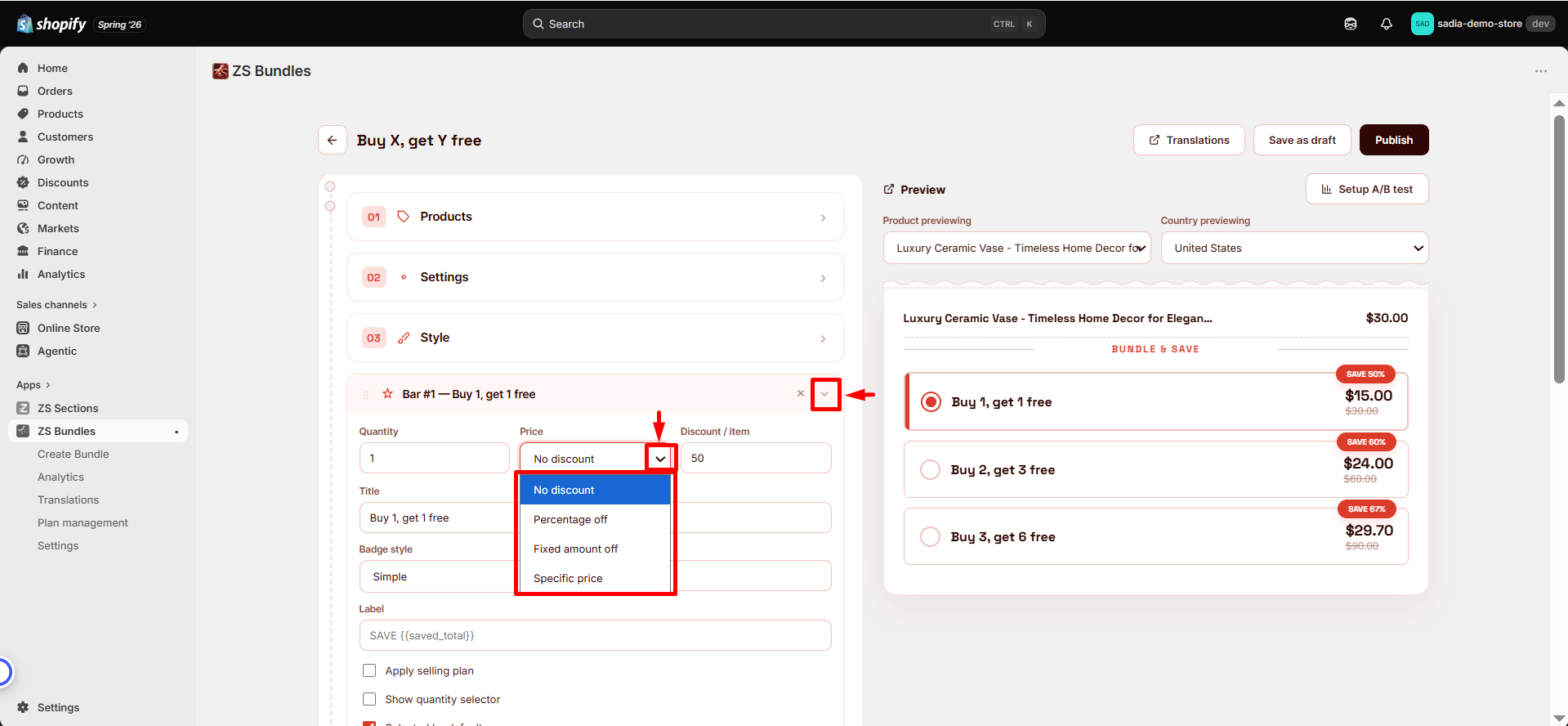
The discount displayed in the bundle widget is the same discount applied automatically at checkout, ensuring a consistent shopping experience for your customers.
✨ Add-on Features
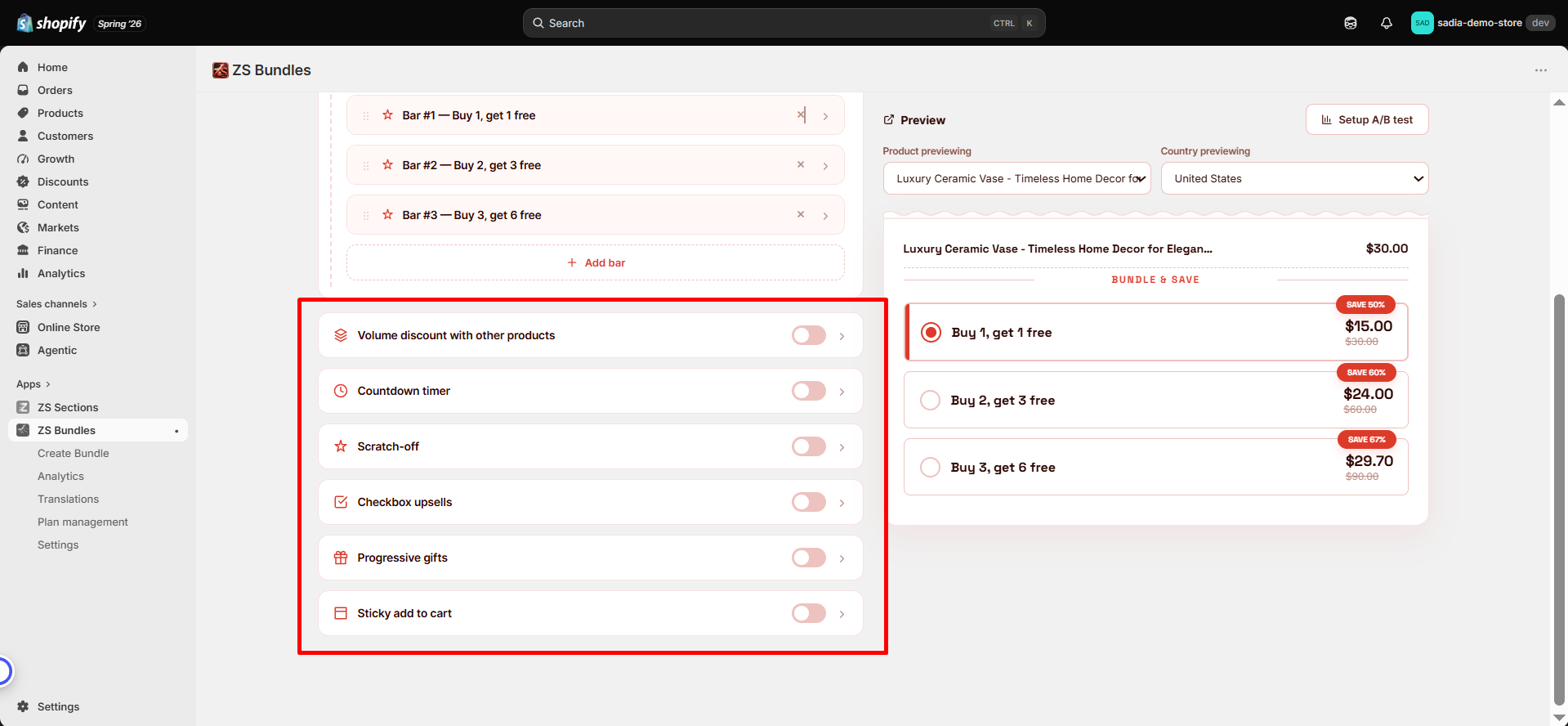
Enhance your bundle offers with additional features available in the bundle editor. Enable these options to create more engaging shopping experiences and increase conversions.
- Volume Discount — Offer additional discounts when customers purchase multiple items.
- Countdown Timer — Create urgency by displaying a live countdown timer in the bundle widget.
- Scratch-off — Add an interactive reveal experience where shoppers unlock a special offer.
- Subscriptions — Allow customers to purchase products through a recurring subscription option.
- Checkbox Upsells — Add optional products or upgrades that shoppers can include with one click.
- Progressive Gifts — Reward customers with free gifts as they reach higher quantities.
- Sticky Add to Cart —Keep the add-to-cart button visible while customers scroll through the page.
🎨 Styling
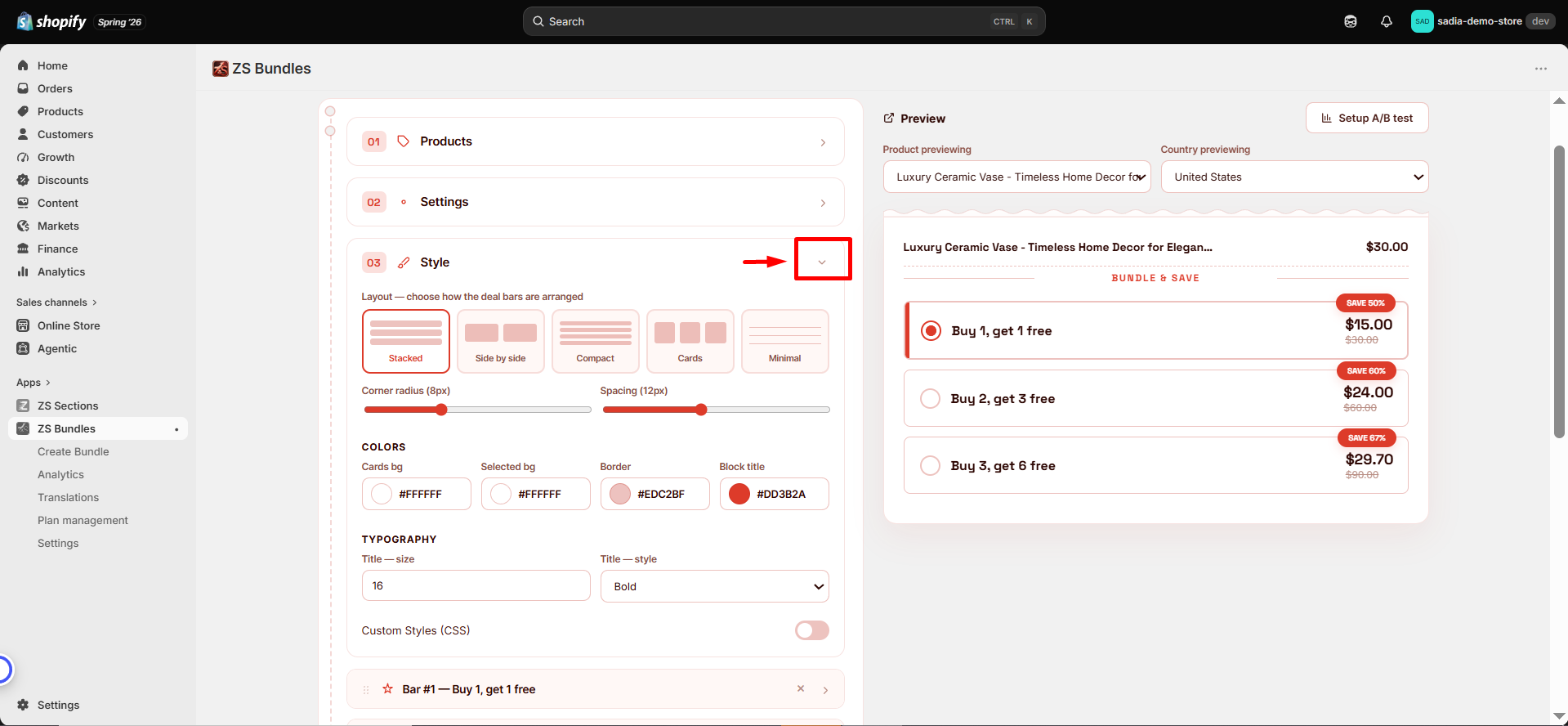
Customize the appearance of your bundle widget from the Style section. Adjust the layout, corner radius, spacing, colors, and typography to match your store’s design.
For advanced customization, enable Custom CSS and add your own styling rules.
All changes are updated instantly in the live preview, so you can see exactly how the bundle widget will look on your storefront.
🌐 Translations
ZS Bundles supports multiple languages, allowing you to customize the text displayed in your bundle widgets for different shoppers.
There are two translation options:
- Global Translations — Manage store-wide text from the Translations page in the app sidebar. These changes apply across all bundles.
- Per-Bundle Translations — Customize text for a specific bundle by opening the bundle editor and selecting Translations.
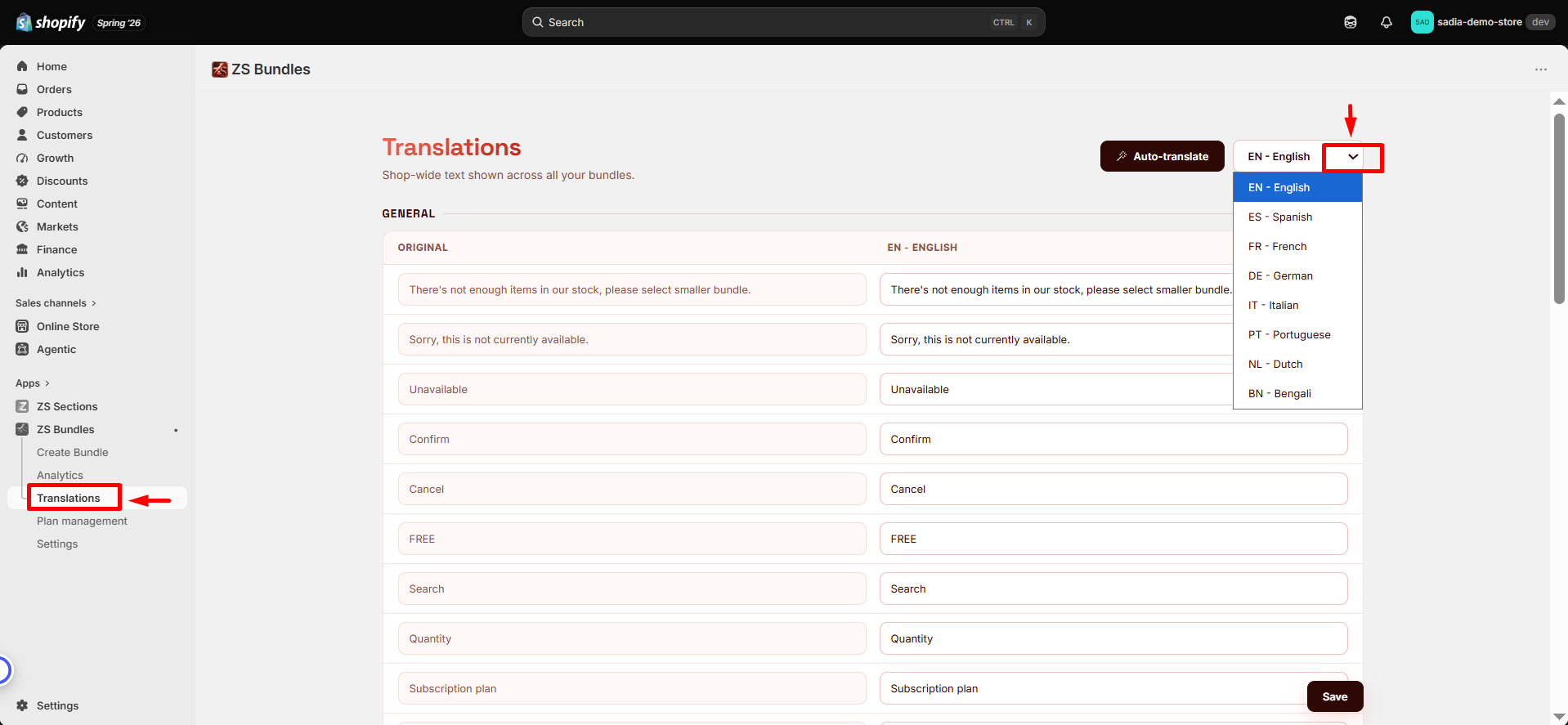
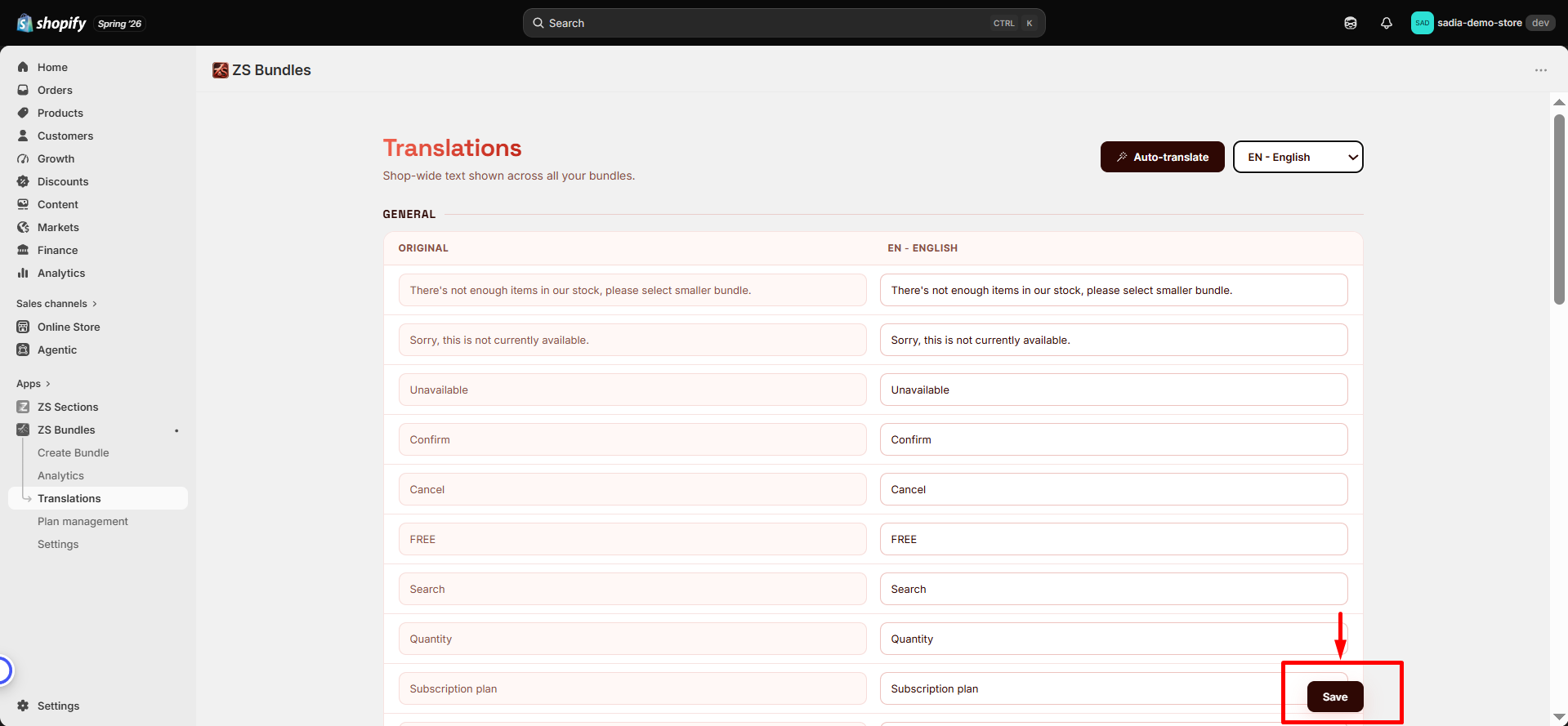
To add translations, choose a language from the dropdown, enter the translated text for each original string, and click Save.
📊 Analytics
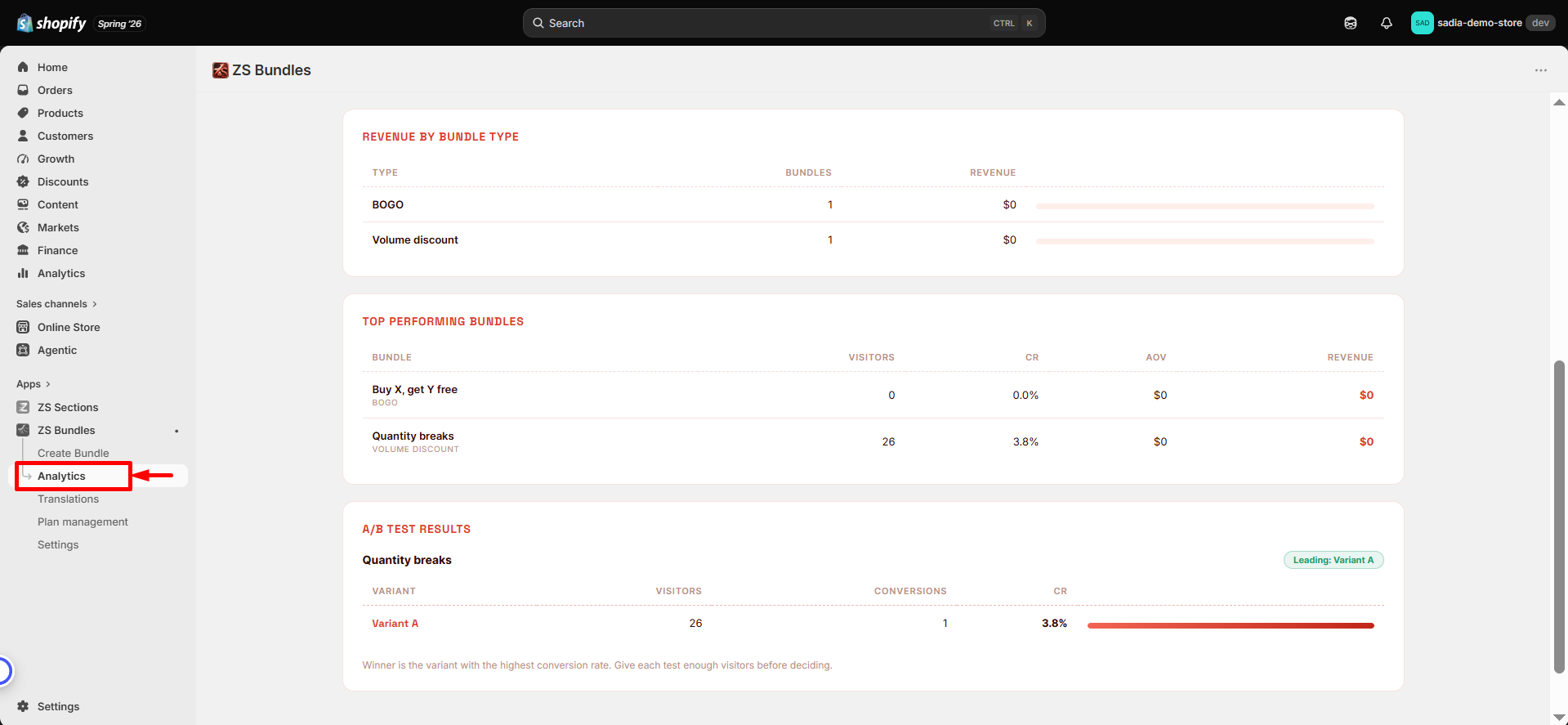
Track the performance of your bundle offers with detailed insights from the Analytics page.
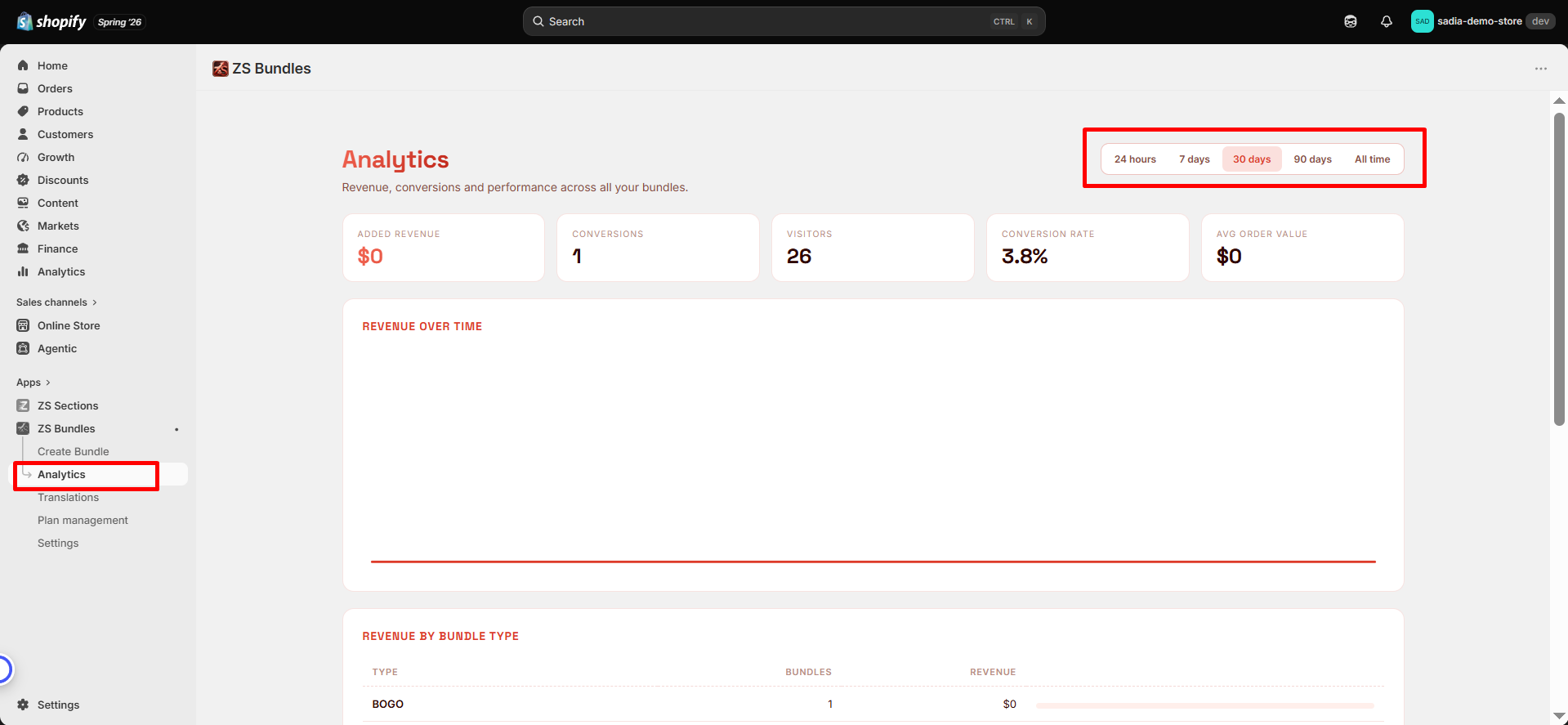
View important metrics for each bundle, including views, conversions, conversion rate, average order value, and additional revenue generated.
Use the date range filter (24 hours, 7 days, 30 days, 90 days, or all time) to identify trends and understand which offers are performing best.
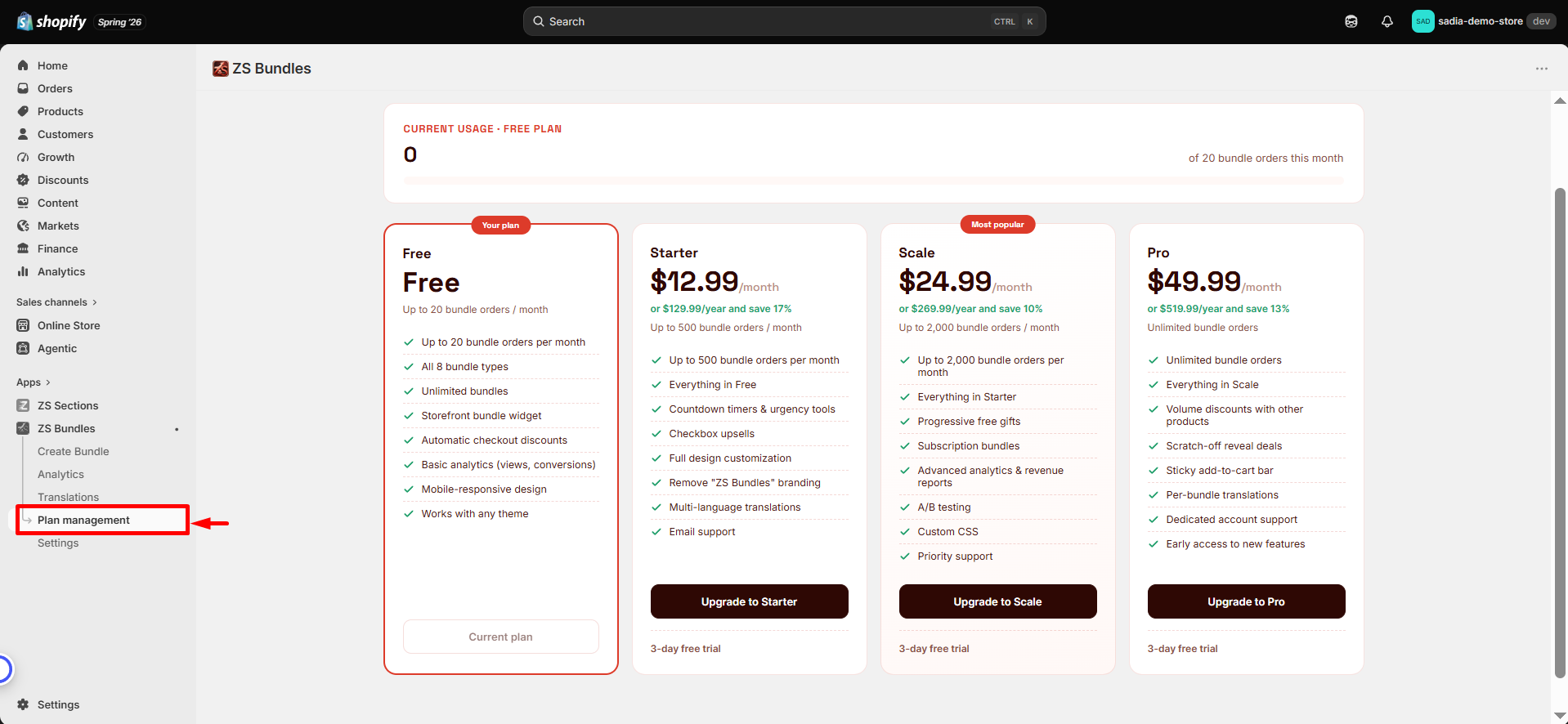
💳 Plans & Billing
ZS Bundles uses a usage-based pricing model. Your plan is based on the additional revenue tracked by ZS Bundles through your bundle offers.
| Plan | Price | Tracked Revenue Limit |
|---|---|---|
| Free | $0 | Up to $1,000 |
| Starter | $12.99/month | Up to $1,000 |
| Scale | $24.99/month | Up to $5,000 |
| Pro | $49.99/month | Up to $10,000 |
You can view, upgrade, or manage your plan anytime from Plan Management in the app.
❓ Frequently Asked Questions
Do I need to write any code?
No. Everything is configured in the app, and the widget is added through Shopify's theme editor with a few clicks.
Will the discount apply automatically at checkout?
Yes. When you publish a bundle, ZS Bundles creates an automatic discount that applies the correct price the moment a bundle is added to the cart.
Does it work with my theme?
ZS Bundles works with any theme that uses Shopify's standard product form, including Dawn and most modern themes. The widget uses your theme's own Add to cart button and cart.
Can customers choose different variants?
Yes. In the bundle's Settings you can allow customers to pick different variants for each item in the bundle.
What happens to my data if I uninstall?
When you uninstall the app, your bundle data and settings are removed from our systems automatically.
How is my data protected?
Data is encrypted in transit and at rest, and we only process the minimum information needed to run your bundles and report analytics. We never sell your data.